
How to use Spreadsheet Labels
Turn a list of names and addresses in a Google Sheet into print-ready Avery labels or envelopes. Here's every step, with what to do if something looks off.
- Works inGoogle Sheets
- Set-up timeAbout 5 minutes
- Free planFree for documents up to 3 pages
Step 1 of 7
Open Spreadsheet Labels beside your sheet
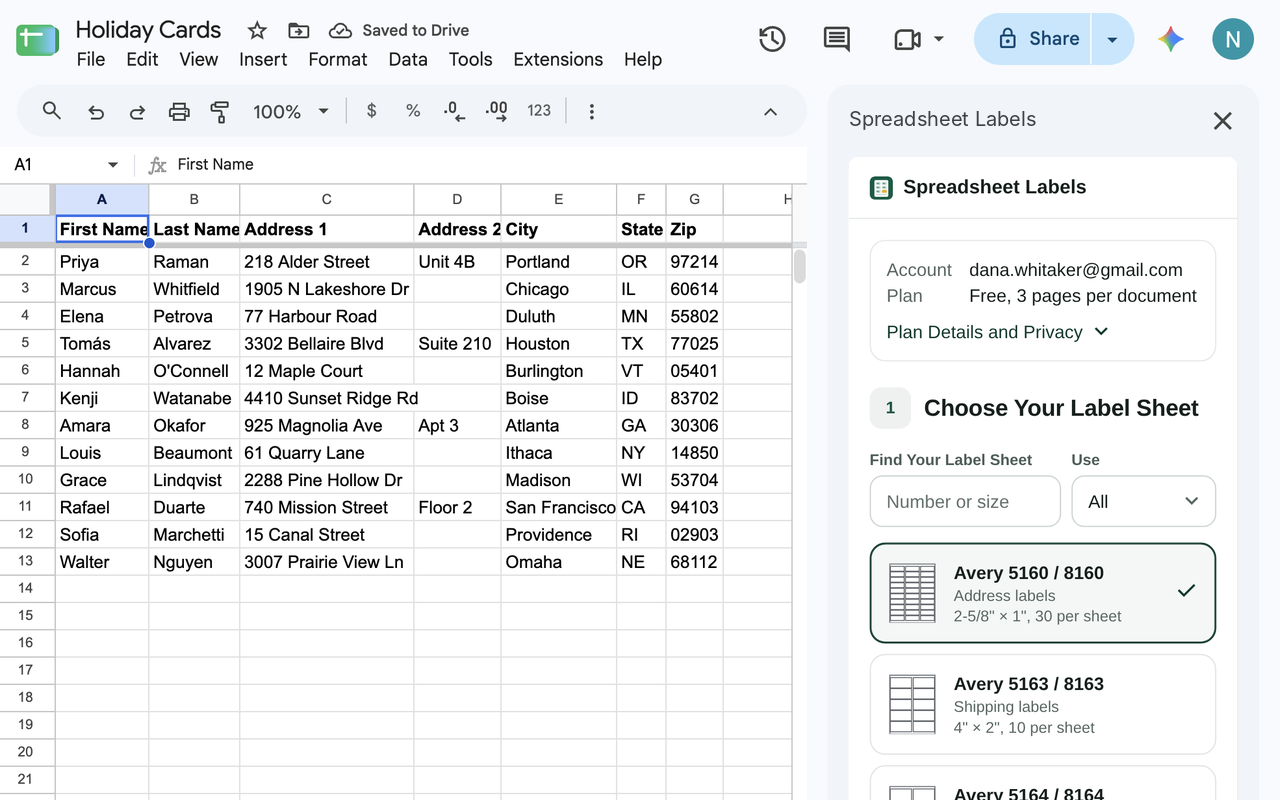
Open the Google Sheet with your addresses. Put one person per row, with headings in the first row such as First Name, Last Name, Address 1, City, State and Zip.
- Click Extensions in the menu bar.
- Choose Spreadsheet Labels, then Open.
- No sheet yet? Choose Add a Sample Sheet to try it with example addresses.
If it doesn't work
- The panel says it could not read your sheet or form. Google add-ons only work in the account you signed in to first in this browser. Use a separate Chrome profile for this account, or sign out of all accounts and sign in to this one first. How to fix it.
- Spreadsheet Labels isn't in the Extensions menu. Reload the sheet. If it's still missing, install it again from the Google Workspace Marketplace.
Step 2 of 7
Choose your label sheet
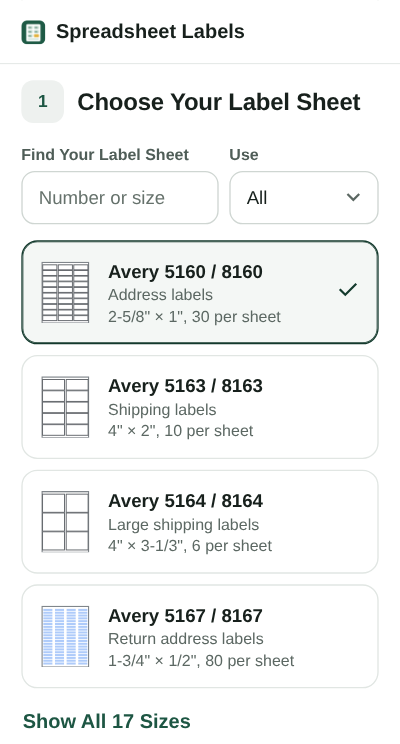
Find the product number on your box of labels, such as 5160 or 8160, and pick it from the list.
- Type the number in Find your label sheet.
- Click the matching sheet. The tick shows it's chosen.
- Can't find yours? Choose Show all sizes, or Add your own size and type the measurements from the box.
If it doesn't work
- My number isn't listed. Many numbers share one layout: 8160, 5260 and 18160 all print like 5160. The box usually says "Use template 5160".
Step 3 of 7
Arrange the text
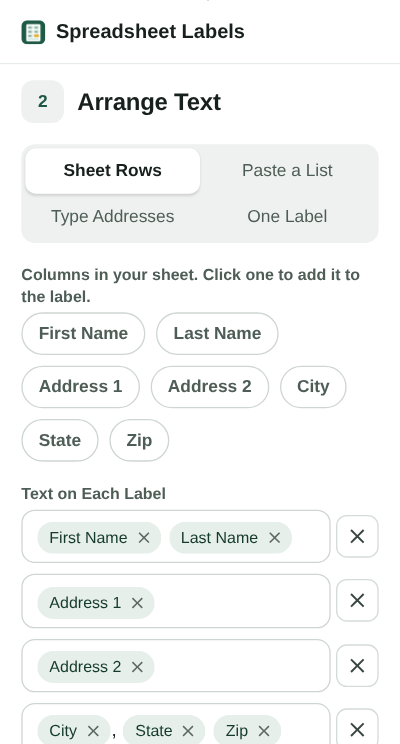
Spreadsheet Labels reads the headings in your sheet and suggests a layout. Each line of the label is a row of column chips.
- Drag a column onto a line to add it, or click the × on a chip to remove it.
- Use Paste a list to paste addresses from anywhere, or Type addresses to type a few.
- Use One label to print the same label many times, such as a return address.
If it doesn't work
- "Could not read your sheet." Click Try again. If it keeps happening, close the panel and open it again from the Extensions menu.
- The wrong row is used as headings. Put your headings in row 1, or choose No heading row in the panel.
Step 4 of 7
Preview and check addresses
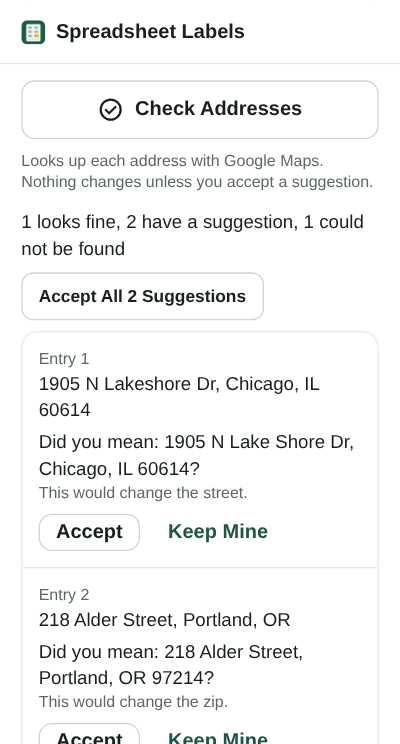
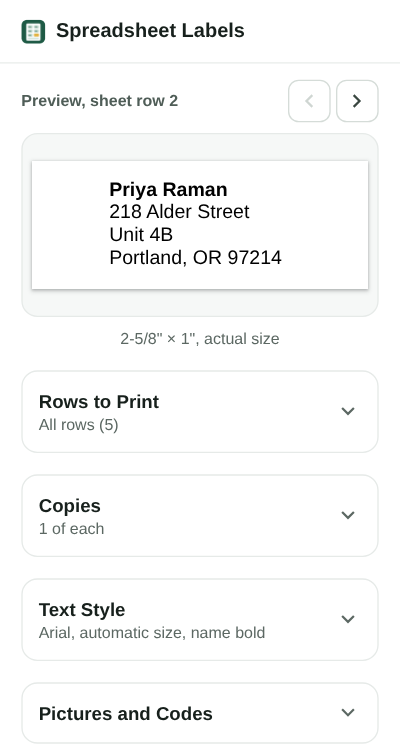
The preview shows a real label from your sheet. Use the arrows to look through rows. Before printing a big batch, let Spreadsheet Labels check the addresses for typos.
- Click Check addresses.
- Review each suggestion and choose Accept or Keep mine.
- Choose Accept all if the suggestions look right.
If it doesn't work
- An address can't be found. It may be new or rural. Check it by hand, then choose Keep mine. It will still print.
Step 5 of 7
Choose rows, copies and style
Print every row, only the rows you've selected, or a range. You can also print copies, change the font and size, and add a QR code, barcode or picture to each label.
- Open Rows to print to pick which rows.
- Open Copies to print each label more than once.
- Open Text style to change the font, size or alignment.
- Open Pictures and codes to add a logo, QR code or barcode.
If it doesn't work
- Text is cut off on a label. Choose a smaller size in Text style, or turn on automatic size. Long lines shrink to fit.
Step 6 of 7
Line up your printer once
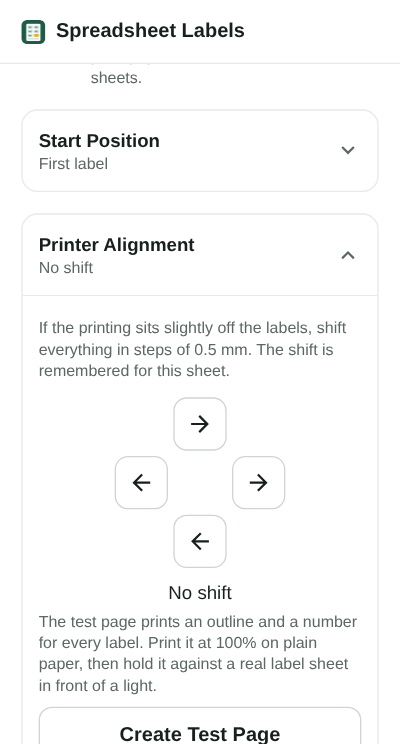
Every printer feeds a little differently. Print one test page on plain paper, hold it against a label sheet up to the light, and nudge the layout if needed. Spreadsheet Labels remembers it.
- Click Print a test page.
- If labels sit too high, low, left or right, open Printer alignment and move them in small steps.
- Using a sheet you've partly used? Set Start position to the first empty label.
If it doesn't work
- Everything is slightly too small or too big. In your printer window, set Scale to 100% or Actual size, not "Fit to page".
- Labels drift lower down the page. Check the paper size is Letter (or A4 for A4 sheets) in the print window.
Step 7 of 7
Create and print your labels
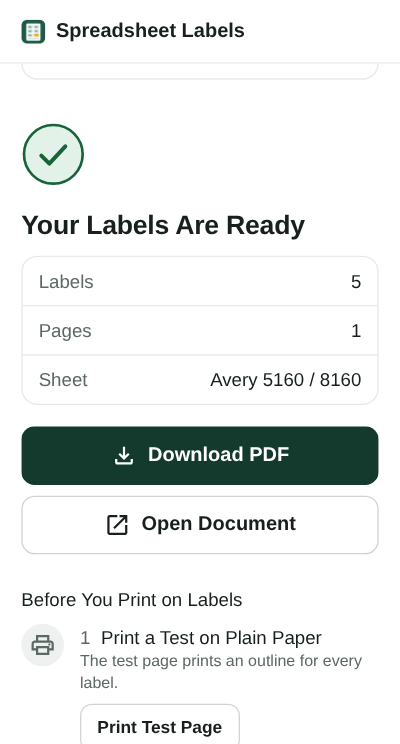
Spreadsheet Labels builds a Google Doc with your labels. Download it as a PDF and print at 100%.
- Click Create labels.
- Click Download PDF and print at 100%, or Open document to edit any label first.
If it doesn't work
- "The labels could not be created." Google sometimes has a short hiccup. Click Try again.
- It stops at 3 pages. The free plan makes documents of up to 3 pages (90 Avery 5160 labels). Pro has no page limit.
Still stuck?
Email northpineapps@gmail.com with a screenshot of the panel and what you expected to happen. We usually reply within a day.
Install from Google Workspace MarketplaceAbout Spreadsheet LabelsSupportAll guides